Appointments can be scheduled a number of ways in the Appointments
module. Recall appointments are usually scheduled from the Recall List, and
sometimes an appointment is scheduled from the Unscheduled List.
But generally, when a patient calls or is scheduling their next appointment, the
appointment is scheduled using the following window which is accessed by one of
these methods:
1. Double click on the appointment background,
2. Click Select Patient in
the Appointments module in the toolbar at the top, or
3. Select an existing
appointment, and then click the Make Appt button on the right side of the
screen.
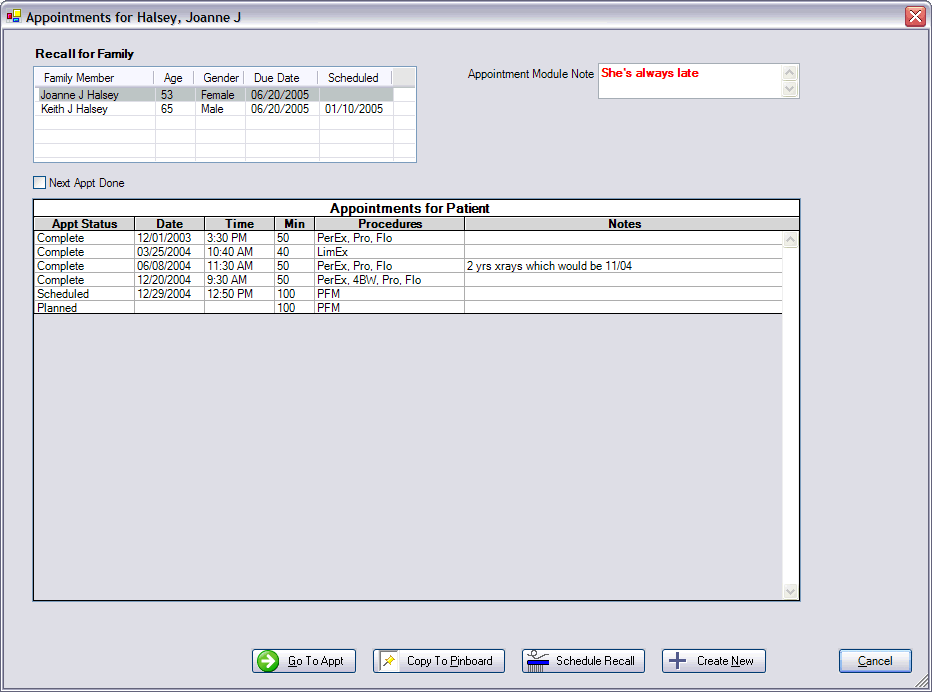
The note at the top is the same note that is visible in the Appointments module at the lower right. It is only here for reference. The main table shows all appointments for the selected patient. Some of them will have already been completed, but the list also includes all appointments on the Unscheduled list, any future appointment, and the planned appointment.
The planned appointment needs the most explanation. Please see the extensive explanation on the purpose and use of the Planned appointment before continuing. It is created in the Chart module by the chairside assistant and is then used by the front office to very quickly schedule the patient. The reasoning behind this is that the front desk personel frequently do not have the time or the expertise to know what the appointment should be for. Even less professional would be to ask the patient what their next appointment is for. The time and procedures specified in the planned appointment can be reviewed, but should not be changed by the front office staff except in very rare circumstances. If a planned appointment needs to be changed, it is usually because of poor communication between the chairside assistant and the patient. The chairside assistant would then need to review the chart and discuss further with the patient what the patient would like to do next. If a patient leaves the office without making an appointment for some reason, the planned appointment can be scheduled later, when they call.
The planned appointment will show on the list above just like any other appointment. In addition to the planned appointment, there can be an appointment that has been scheduled which is based on the planned appointment. It should have exactly the same procedures and length as the planned appointment, but if it has been changed, it will be easy to see from here.
The first thing you should do when a patient calls is to pull up the appointment list which includes the planned appointment so that you can properly communicate with the patient. If the planned appointment has not been scheduled, and that is the appointment you wish to schedule, click on the planned appointment in the list, and then click Copy to Pinboard. Or if they are calling to schedule their Recall, use the Schedule Recall button to automatically generate an appointment with all the necessary procedures on it.
Of course, sometimes, the patient is not calling to schedule their planned appoinment or their recall appointment. If they are calling to schedule something simple like a post op or a denture adjustment, then you can easily schedule that type of appointment by clicking Create New. The Appointment Edit window comes up and from there, you can add procedures, change the length, add notes etc. Once you click OK from the appointment edit window, the appointment will either end up on the pinboard or, if you initially double clicked on a blank time (method 1 above), the appointment will be scheduled at that time.
One other thing you can do once you have the list displayed is to go directly to a previously scheduled appointment by selecting an appointment and then clicking Go To Appt. This does not work if the appointment is unscheduled or Next. You can also place a copy of any appointment on the Pinboard by selecting an appointment and then clicking Copy to Pinboard. You should obviously not try to move a completed appointment. Once the appointment is on the pinboard, you can schedule it wherever you wish by dragging onto the appointments area. If you clear the pinboard, the appointment does not get deleted.